Build a Calculator in HTML, CSS & JavaScript (Step by Step)
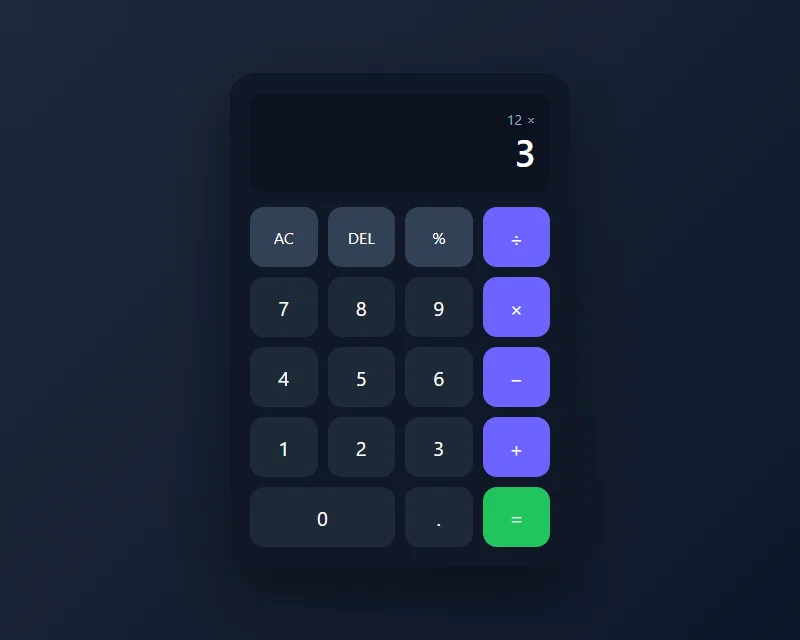
A complete calculator with a CSS Grid keypad, keyboard support and proper handling of decimals and division by zero, explained line by line.
A JavaScript calculator needs three things: buttons laid out with CSS Grid, a few variables that remember the current number, the previous number and the chosen operator, and a function that does the maths when you press equals. The full source code below works with mouse, touch and keyboard, and does not use eval().
A calculator is one of the best first JavaScript projects. It is small enough to finish in an afternoon, but it makes you practise the things real apps are built from: reacting to clicks, keeping track of state, updating the page, and handling awkward cases such as dividing by zero.
You will build it in three steps: the HTML for the screen and keys, the CSS for the layout, and the JavaScript that makes it work. Paste each block into the matching tab of the free HixCode code editor to run it as you go.
Step 1: The HTML
<main class="page">
<div class="calculator">
<div class="screen">
<div class="history" id="historyLine"></div>
<div class="display" id="display" role="status" aria-live="polite">0</div>
</div>
<div class="keys" id="keys">
<button type="button" class="key key-action" data-action="clear">AC</button>
<button type="button" class="key key-action" data-action="delete" aria-label="Delete last digit">DEL</button>
<button type="button" class="key key-action" data-action="percent" aria-label="Percent">%</button>
<button type="button" class="key key-op" data-op="/" aria-label="Divide">÷</button>
<button type="button" class="key" data-digit="7">7</button>
<button type="button" class="key" data-digit="8">8</button>
<button type="button" class="key" data-digit="9">9</button>
<button type="button" class="key key-op" data-op="*" aria-label="Multiply">×</button>
<button type="button" class="key" data-digit="4">4</button>
<button type="button" class="key" data-digit="5">5</button>
<button type="button" class="key" data-digit="6">6</button>
<button type="button" class="key key-op" data-op="-" aria-label="Subtract">−</button>
<button type="button" class="key" data-digit="1">1</button>
<button type="button" class="key" data-digit="2">2</button>
<button type="button" class="key" data-digit="3">3</button>
<button type="button" class="key key-op" data-op="+" aria-label="Add">+</button>
<button type="button" class="key key-zero" data-digit="0">0</button>
<button type="button" class="key" data-action="decimal" aria-label="Decimal point">.</button>
<button type="button" class="key key-equals" data-action="equals" aria-label="Equals">=</button>
</div>
</div>
</main>There are two parts: the screen and the keypad.
- The screen has a small history line and the main display. The display has
role="status"andaria-live="polite", so screen readers read out each new result. - Every key is a
<button type="button">. Buttons work with the keyboard and touch for free. - Data attributes say what each key does. Digits have
data-digit, operators havedata-op, and the rest havedata-action. The JavaScript reads these instead of the text on the button, so you can change a label without breaking anything. - Symbols and labels. The divide, multiply and minus keys show the proper symbols (
÷,×,−) and have anaria-labelsuch as “Divide” so they are announced clearly.
Step 2: The CSS
* {
  box-sizing: border-box;
  margin: 0;
  padding: 0;
}

body {
  font-family: system-ui, -apple-system, "Segoe UI", Roboto, sans-serif;
}

.page {
  min-height: 100vh;
  display: flex;
  justify-content: center;
  align-items: center;
  padding: 20px;
  background: linear-gradient(135deg, #1e293b, #0f172a);
}

.calculator {
  width: 100%;
  max-width: 340px;
  padding: 20px;
  background: #111827;
  border-radius: 24px;
  box-shadow: 0 25px 60px rgba(0, 0, 0, 0.45);
}

.screen {
  padding: 16px 14px;
  margin-bottom: 16px;
  background: #0b1220;
  border-radius: 14px;
  text-align: right;
  overflow: hidden;
}

.history {
  min-height: 20px;
  color: #94a3b8;
  font-size: 0.9rem;
}

.display {
  color: #fff;
  font-size: 2.4rem;
  font-weight: 600;
  line-height: 1.2;
  overflow-wrap: anywhere;
}

/* The keypad: 4 equal columns */
.keys {
  display: grid;
  grid-template-columns: repeat(4, 1fr);
  gap: 10px;
}

.key {
  height: 60px;
  border: 0;
  border-radius: 14px;
  background: #1f2937;
  color: #fff;
  font-size: 1.25rem;
  font-family: inherit;
  cursor: pointer;
  transition: background 0.15s, transform 0.05s;
}

.key:hover {
  background: #374151;
}

.key:active {
  transform: scale(0.96);
}

.key:focus-visible {
  outline: 2px solid #a5b4fc;
  outline-offset: 2px;
}

.key-action {
  background: #334155;
  font-size: 1rem;
}

.key-op {
  background: #6c63ff;
}

.key-op:hover {
  background: #574fd6;
}

.key-equals {
  background: #22c55e;
}

.key-equals:hover {
  background: #16a34a;
}

/* 0 is twice as wide */
.key-zero {
  grid-column: span 2;
}
How the keypad layout works
The important three lines are on .keys:
display: gridturns the keypad into a grid.grid-template-columns: repeat(4, 1fr)creates four columns of equal width.1frmeans “one share of the free space”.gap: 10pxadds the same space between every row and column.
The buttons simply fill the grid in the order they appear in the HTML, four per row. The only special case is zero: grid-column: span 2 makes it two columns wide, which is why the last row has three keys instead of four.
The calculator is centered on the page with Flexbox on .page. That technique is covered in how to center a div in CSS. The width is 100% with a max-width of 340px, so it shrinks on small phones and never grows too large.
Step 3: The JavaScript
const display = document.getElementById("display");
const historyLine = document.getElementById("historyLine");
const keys = document.getElementById("keys");

const symbols = { "+": "+", "-": "\u2212", "*": "\u00d7", "/": "\u00f7" };

let current = "0";    // the number on screen
let previous = null;  // the first number of the operation
let operator = null;  // "+", "-", "*" or "/"
let startNew = false; // true when the next digit should start a new number

function updateDisplay() {
  display.textContent = current;
  historyLine.textContent =
    operator === null ? "" : format(previous) + " " + symbols[operator];
}

// Round away floating point noise such as 0.1 + 0.2 = 0.30000000000000004
function format(number) {
  return String(parseFloat(number.toPrecision(10)));
}

function inputDigit(digit) {
  if (startNew || current === "0" || current === "Error") {
    current = digit;
    startNew = false;
  } else if (current.length < 12) {
    current += digit;
  }
}

function inputDecimal() {
  if (startNew || current === "Error") {
    current = "0.";
    startNew = false;
  } else if (!current.includes(".")) {
    current += ".";
  }
}

function operate(a, b, op) {
  switch (op) {
    case "+": return a + b;
    case "-": return a - b;
    case "*": return a * b;
    case "/": return b === 0 ? null : a / b;
  }
}

function calculate() {
  if (operator === null || startNew) return;
  const result = operate(previous, parseFloat(current), operator);
  current = result === null ? "Error" : format(result);
  previous = null;
  operator = null;
  startNew = true;
}

function chooseOperator(nextOperator) {
  if (current === "Error") return;
  // "2 + 3 +" should first work out 2 + 3
  if (operator !== null && !startNew) calculate();
  if (current === "Error") return;
  previous = parseFloat(current);
  operator = nextOperator;
  startNew = true;
}

function percent() {
  if (current === "Error") return;
  current = format(parseFloat(current) / 100);
  startNew = false;
}

function deleteLast() {
  if (startNew || current === "Error") {
    current = "0";
    startNew = false;
    return;
  }
  current = current.slice(0, -1);
  if (current === "" || current === "-") current = "0";
}

function clearAll() {
  current = "0";
  previous = null;
  operator = null;
  startNew = false;
}

// One click listener for the whole keypad (event delegation)
keys.addEventListener("click", function (event) {
  const key = event.target.closest("button");
  if (!key) return;

  if (key.dataset.digit !== undefined) inputDigit(key.dataset.digit);
  else if (key.dataset.op !== undefined) chooseOperator(key.dataset.op);
  else if (key.dataset.action === "decimal") inputDecimal();
  else if (key.dataset.action === "equals") calculate();
  else if (key.dataset.action === "percent") percent();
  else if (key.dataset.action === "delete") deleteLast();
  else if (key.dataset.action === "clear") clearAll();

  updateDisplay();
});

// Keyboard support
document.addEventListener("keydown", function (event) {
  const key = event.key;

  if (key >= "0" && key <= "9") inputDigit(key);
  else if (key === ".") inputDecimal();
  else if (key === "+" || key === "-" || key === "*" || key === "/") {
    event.preventDefault(); // stop "/" opening quick find in some browsers
    chooseOperator(key);
  }
  else if (key === "Enter" || key === "=") {
    event.preventDefault(); // stop Enter re-clicking the focused button
    calculate();
  }
  else if (key === "%") percent();
  else if (key === "Backspace") deleteLast();
  else if (key === "Escape") clearAll();
  else return;

  updateDisplay();
});

updateDisplay();
The four variables that hold the state
Everything the calculator needs to remember lives in four variables:
| Variable | What it holds | After typing 12 × |
|---|---|---|
current | The number on screen, kept as text so digits can be added to the end | "12" |
previous | The first number of the calculation | 12 |
operator | The chosen operation, or null | "*" |
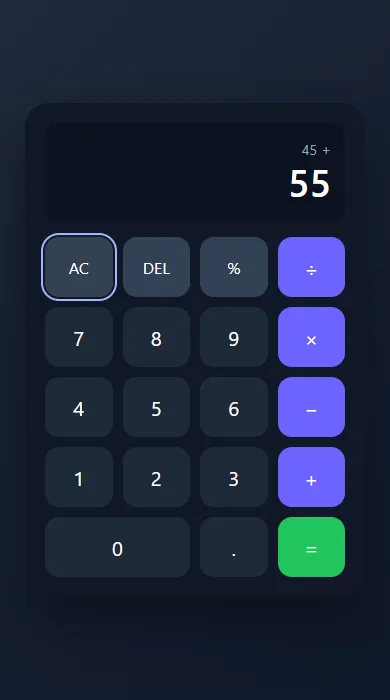
startNew | Whether the next digit starts a fresh number | true |
startNew is the piece beginners usually miss. After you press an operator or equals, the old number is still on screen, but the next digit should replace it instead of being added to it.
What each function does
inputDigitreplaces the display when a new number is starting, otherwise adds the digit to the end. It stops at 12 characters so the number never overflows the screen.inputDecimaladds a point only if there isn’t one already, so you cannot type1.2.3.operateis the only place where maths happens. It returnsnullfor division by zero, and the display then shows “Error”.chooseOperatorstores the first number and the operator. If a calculation is already waiting, as in2 + 3 +, it works that out first, so you can chain operations.calculateruns when you press equals, then clears the operator so the result can be used as the start of the next calculation.formattidies the result. See the next section.
One listener for all the keys
Instead of adding a click listener to each of the 19 buttons, there is one on the keypad. A click on any button “bubbles up” to its parent, and event.target.closest("button") finds which button it was. This pattern is called event delegation. It is less code, and it keeps working if you add more keys later.
Keyboard support
The keydown listener maps the keys you would expect: digits, the point, + - * /, Enter or = for equals, Backspace to delete, and Escape to clear. Two keys call event.preventDefault(): the slash, which opens a search box in some browsers, and Enter, which would otherwise “click” whichever button was focused last.
Paste the three blocks into the editor and try 0.1 + 0.2, then 8 ÷ 0, then type on your keyboard.
Open the Code Editor →Why 0.1 + 0.2 is not 0.3 in JavaScript
Type 0.1 + 0.2 into a browser console and you get 0.30000000000000004. This is not a bug in JavaScript. Computers store these numbers in binary, and just as 1/3 cannot be written exactly in decimal (0.3333…), 0.1 cannot be written exactly in binary. The tiny error shows up when numbers are added.
The format function hides it. toPrecision(10) rounds the result to ten significant digits, giving the text "0.3000000000", and parseFloat removes the extra zeros, leaving 0.3. Ten digits is plenty for a pocket calculator.
Why this calculator does not use eval()
Many calculator tutorials build a text string such as "12*3" and pass it to eval():
// Don't do this
display.textContent = eval(expression);
It looks shorter, but it is a bad habit for three reasons:
- Security.
eval()runs any JavaScript it is given, not just maths. If the text ever comes from somewhere you do not control, such as a URL, saved data or another user, it can run harmful code on your page. - Errors. Input like
5 + * 3makeseval()throw an error that you then have to catch. With separate variables, invalid input simply cannot be built. - Learning. Handling the state yourself is the actual skill this project teaches. It is the same idea used in forms, games and every app framework.
Ideas to extend it
- Plus/minus key: multiply
currentby -1. - History list: push each finished calculation into an array and show the last five under the keypad.
- Memory keys (M+, MR, MC): one more variable that stores a number.
- Themes: put the colors in CSS variables and switch them with a class on
.calculator. - Square root and powers: add cases that use
Math.sqrt()and**.
Common mistakes to avoid
- Joining numbers as text.
"2" + "3"is"23", not5. Convert withparseFloat()before doing maths. - Forgetting the “start a new number” step, so typing after equals adds digits to the old result.
- Allowing more than one decimal point.
- Not handling division by zero. JavaScript returns
Infinity, which confuses users. - Reading the button’s text to decide what it does. Use data attributes so the label can change freely.
Summary
You now have a working calculator built with a CSS Grid keypad, four state variables, event delegation and keyboard support, with safe maths instead of eval(). The same pattern, where a click updates the state and the state updates the screen, is the foundation of almost every interactive page.
Ready for the next project? Build a to-do list app that saves your tasks, or pick another idea from our list of 10 JavaScript projects for beginners.
Frequently asked questions
How do I make a calculator in JavaScript?
Create buttons for the digits and operators in HTML, lay them out with CSS Grid, and keep three values in JavaScript: the current number, the previous number and the chosen operator. When an operator is pressed, store the first number. When equals is pressed, apply the operator to both numbers and show the result.
Why should I not use eval() in a calculator?
eval() runs any JavaScript it is given, not only math, so it becomes a security risk as soon as the input can come from somewhere you do not control. It also throws errors on invalid input. Storing the numbers and operator in variables and calculating with a switch statement is safer and teaches you how state works.
Why does 0.1 + 0.2 not equal 0.3 in JavaScript?
JavaScript stores numbers in binary floating point, and 0.1 and 0.2 cannot be represented exactly in binary, so the sum is 0.30000000000000004. Round the result before showing it, for example with parseFloat(result.toPrecision(10)).
How do I add keyboard support to a JavaScript calculator?
Listen for the keydown event on the document and check event.key. Map the digit keys, the decimal point, the + - * / keys, Enter or = for equals, Backspace for delete and Escape for clear to the same functions your buttons call.
How do I lay out calculator buttons with CSS?
Use CSS Grid on the keypad: display: grid; grid-template-columns: repeat(4, 1fr); gap: 10px;. The buttons fill the grid four per row in HTML order. To make a wider key such as zero, add grid-column: span 2.