10 JavaScript Projects for Beginners (With Source Code)
Ten small projects ordered from easiest to hardest, each with the skill it teaches, working code, and an idea to make it your own.
The best beginner JavaScript projects are small and finishable: a counter, a digital clock, a random color generator, a tip calculator, a to-do list, a calculator, a character counter, a password generator, a quiz and a weather app. They are listed below from easiest to hardest, each with what it teaches and working source code.
Watching tutorials feels like progress, but JavaScript only really sticks when you build something yourself and fix it when it breaks. The trouble is choosing a project. Too easy and you learn nothing. Too big and you give up halfway.
These ten projects are ordered so that each one adds one or two new ideas to what you already know. None of them needs a framework, a library or an install. Every code block on this page has been run in a browser, and you can paste any of them into the free HixCode online code editor to see it working in seconds.
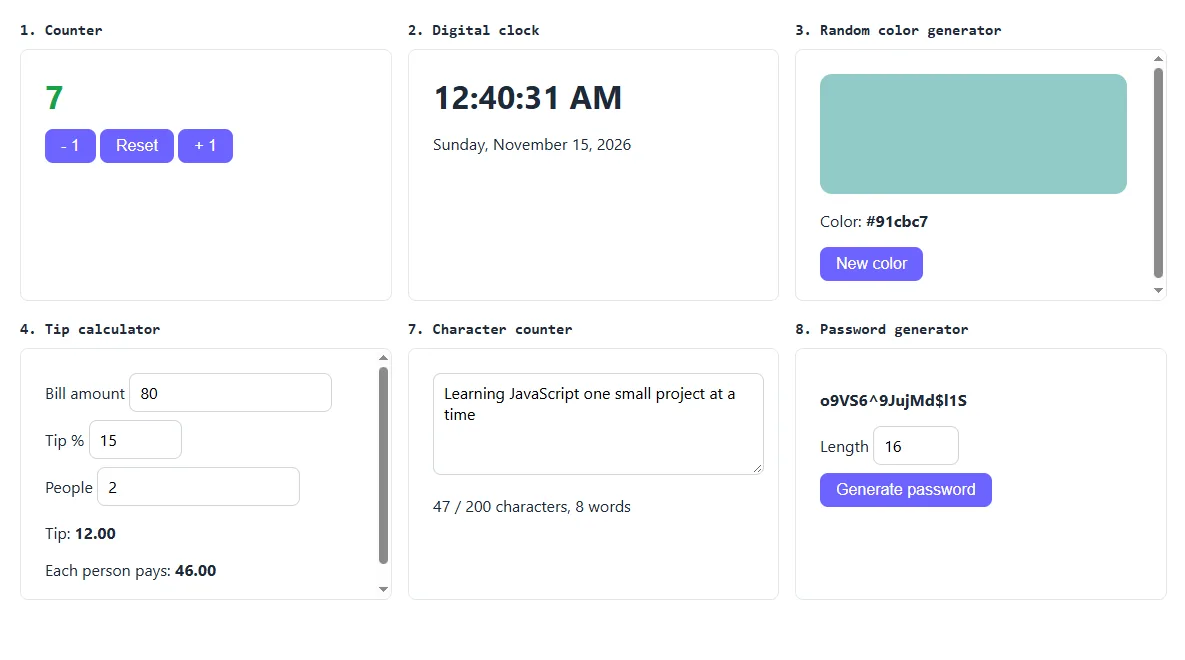
The 10 projects at a glance
| # | Project | Difficulty | Main thing you learn |
|---|---|---|---|
| 1 | Counter | Very easy | Click events, updating the page |
| 2 | Digital clock | Very easy | Dates and timers |
| 3 | Random color generator | Easy | Random numbers, changing styles |
| 4 | Tip calculator | Easy | Reading inputs, number conversion |
| 5 | To-do list | Medium | Arrays, rendering, localStorage |
| 6 | Calculator | Medium | State, event delegation, keyboard input |
| 7 | Character counter | Easy | The input event, strings |
| 8 | Password generator | Medium | Loops, secure random numbers |
| 9 | Quiz app | Medium | Arrays of objects, app flow |
| 10 | Weather app | Harder | fetch, async code, APIs |
How to run the examples
For each project, paste the HTML into the HTML tab and the JavaScript into the JS tab of the editor. The examples are deliberately unstyled so the JavaScript is easy to read. If you want them to look nicer, add this small stylesheet to the CSS tab:
body {
  font-family: system-ui, -apple-system, "Segoe UI", Roboto, sans-serif;
  padding: 24px;
  color: #1f2937;
}

button {
  padding: 8px 16px;
  border: 0;
  border-radius: 8px;
  background: #6c63ff;
  color: #fff;
  font-size: 1rem;
  cursor: pointer;
}

input,
textarea {
  padding: 8px 10px;
  border: 1px solid #d1d5db;
  border-radius: 8px;
  font-size: 1rem;
  font-family: inherit;
}
1. Counter
Difficulty: very easy. You learn: finding elements, click events, variables, and changing text and styles.
Three buttons add one, subtract one, or reset. It is the “hello world” of interactive pages: a variable holds the number, and every click changes the variable and then updates the screen.
<h2 id="count">0</h2>
<button id="minus">- 1</button>
<button id="reset">Reset</button>
<button id="plus">+ 1</button>const countEl = document.getElementById("count");
let count = 0;
function update(change) {
count = change === 0 ? 0 : count + change;
countEl.textContent = count;
countEl.style.color = count < 0 ? "#dc2626" : "#16a34a";
}
document.getElementById("plus").addEventListener("click", function () { update(1); });
document.getElementById("minus").addEventListener("click", function () { update(-1); });
document.getElementById("reset").addEventListener("click", function () { update(0); });Make it yours: add a step input so each click adds 5 or 10, or stop the count going below zero.
2. Digital clock
Difficulty: very easy. You learn: the Date object and setInterval.
new Date() gives the current date and time. setInterval(tick, 1000) runs a function again every 1000 milliseconds. toLocaleTimeString() formats the time the way the visitor’s country writes it, so you do not have to add leading zeros yourself.
<h2 id="clock">00:00:00</h2>
<p id="date"></p>const clock = document.getElementById("clock");
const dateEl = document.getElementById("date");
function tick() {
const now = new Date();
clock.textContent = now.toLocaleTimeString();
dateEl.textContent = now.toLocaleDateString(undefined, {
weekday: "long", year: "numeric", month: "long", day: "numeric"
});
}
tick(); // show the time straight away
setInterval(tick, 1000); // then update every secondMake it yours: add a greeting that changes with the hour (“Good morning”), or a countdown to a date you care about.
3. Random color generator
Difficulty: easy. You learn: Math.random(), number bases, and changing CSS from JavaScript.
A hex color such as #6c63ff is just a number between 0 and 16,777,215 written in base 16. So a random color is a random number in that range, converted with toString(16). padStart(6, "0") adds zeros at the front when the number is small, so the code always has six digits.
<div id="swatch" style="height: 120px; border-radius: 12px; background: #6c63ff;"></div>
<p>Color: <strong id="hex">#6c63ff</strong></p>
<button id="newColor">New color</button>const swatch = document.getElementById("swatch");
const hex = document.getElementById("hex");
function randomColor() {
// A random number from 0 to 16777215 (ffffff), written in base 16
const number = Math.floor(Math.random() * 16777216);
return "#" + number.toString(16).padStart(6, "0");
}
document.getElementById("newColor").addEventListener("click", function () {
const color = randomColor();
swatch.style.background = color;
hex.textContent = color;
});Make it yours: add a “Copy” button with navigator.clipboard.writeText(color), or generate a palette of five colors at once.
4. Tip calculator
Difficulty: easy. You learn: reading form inputs, converting text to numbers, and rounding money.
The value of an input is always text, even when type="number". Number() converts it, and || 0 covers an empty box. toFixed(2) shows exactly two decimal places. The same function runs on every input event, so the result updates as you type.
<label>Bill amount <input type="number" id="bill" min="0" step="0.01" value="50"></label>
<label>Tip % <input type="number" id="tipPercent" min="0" max="100" value="15"></label>
<label>People <input type="number" id="people" min="1" value="2"></label>
<p>Tip: <strong id="tip">0.00</strong></p>
<p>Each person pays: <strong id="each">0.00</strong></p>const bill = document.getElementById("bill");
const tipPercent = document.getElementById("tipPercent");
const people = document.getElementById("people");
function calculateTip() {
const amount = Number(bill.value) || 0;
const percent = Number(tipPercent.value) || 0;
const count = Math.max(1, Number(people.value) || 1);
const tip = amount * (percent / 100);
document.getElementById("tip").textContent = tip.toFixed(2);
document.getElementById("each").textContent = ((amount + tip) / count).toFixed(2);
}
[bill, tipPercent, people].forEach(function (field) {
field.addEventListener("input", calculateTip);
});
calculateTip();Make it yours: add quick buttons for 10%, 15% and 20%, or turn it into a discount or loan calculator. The structure is identical.
5. To-do list
Difficulty: medium. You learn: arrays of objects, building elements with JavaScript, localStorage, and safe output with textContent.
This is the project where you stop changing the page directly and start keeping your data in an array, then drawing the page from it. That one shift in thinking prepares you for every framework. It is longer than the projects above, so it has its own step-by-step guide: To-do list app in JavaScript.
6. Calculator
Difficulty: medium. You learn: managing state across several variables, CSS Grid, event delegation and keyboard events.
A calculator looks simple until you try “what happens if I press plus twice?”. Working through those cases is excellent practice in thinking about every state your program can be in. The full build, including why you should not use eval(), is in Build a calculator in HTML, CSS and JavaScript.
7. Character counter
Difficulty: easy. You learn: the input event and string methods.
You have seen this under text boxes on social media. The input event fires on every change, including paste and delete. Counting words uses split with the pattern /\s+/, which means “one or more spaces or line breaks”, so double spaces do not create empty words.
<textarea id="message" rows="4" cols="40" maxlength="200"
          placeholder="Type something..."></textarea>
<p><span id="used">0</span> / 200 characters, <span id="words">0</span> words</p>const message = document.getElementById("message");
const used = document.getElementById("used");
const words = document.getElementById("words");
message.addEventListener("input", function () {
const text = message.value;
used.textContent = text.length;
// Split on spaces and line breaks, and ignore empty pieces
words.textContent = text.trim() === "" ? 0 : text.trim().split(/\s+/).length;
used.style.color = text.length >= 180 ? "#dc2626" : "inherit";
});Make it yours: add a reading-time estimate (words divided by 200 is roughly the minutes), or a progress bar that fills as you approach the limit.
8. Password generator
Difficulty: medium. You learn: loops, picking from a string, and why some random numbers are safer than others.
The loop runs once for each character and picks a random position in the allowed characters. The important detail is crypto.getRandomValues(). Math.random() is fine for colors and games, but its numbers can be predicted, so it should never be used for passwords, tokens or anything security-related. The browser’s crypto object is made for that job.
<p><strong id="password">Click the button</strong></p>
<label>Length <input type="number" id="length" min="8" max="64" value="16"></label>
<button id="generate">Generate password</button>const characters =
"ABCDEFGHIJKLMNOPQRSTUVWXYZabcdefghijklmnopqrstuvwxyz0123456789!@#$%^&*";
function generatePassword(length) {
// crypto.getRandomValues gives secure random numbers. Math.random does not.
const randomNumbers = new Uint32Array(length);
crypto.getRandomValues(randomNumbers);
let password = "";
for (let i = 0; i < length; i++) {
password += characters[randomNumbers[i] % characters.length];
}
return password;
}
document.getElementById("generate").addEventListener("click", function () {
const length = Math.min(64, Math.max(8, Number(document.getElementById("length").value) || 16));
document.getElementById("password").textContent = generatePassword(length);
});Make it yours: add checkboxes to include or exclude symbols and numbers, a copy button, and a strength label based on length.
9. Quiz app
Difficulty: medium. You learn: structuring data, moving through steps, and keeping score.
The key decision is how to store the questions. An array of objects, each with the question, the possible answers and the position of the correct one, lets you add a new question without touching any other code. Two variables track progress: which question you are on, and the score. This is the core logic. Drawing the question and its buttons is the part for you to write, using the same createElement and textContent approach as the to-do list:
const questions = [
  { question: "Which tag links a JavaScript file?", answers: ["<js>", "<script>", "<link>"], correct: 1 },
  { question: "Which keyword declares a constant?", answers: ["var", "let", "const"], correct: 2 }
];

let index = 0;
let score = 0;

function answer(choice) {
  if (choice === questions[index].correct) score++;
  index++;
  if (index < questions.length) {
    showQuestion();   // draw the next question and its answer buttons
  } else {
    showResult();     // "You scored 2 out of 2"
  }
}
Make it yours: show which answer was right after each question, add a timer with setInterval, or shuffle the questions.
10. Weather app
Difficulty: harder. You learn: requesting data from an API with fetch, async and await, JSON, and handling errors.
This is your first project that talks to another computer. The example uses Open-Meteo, a weather API that is free for non-commercial use and needs no account or API key, which makes it ideal for learning. You send a latitude and longitude and get JSON back.
async function getTemperature(latitude, longitude) {
const url = "https://api.open-meteo.com/v1/forecast" +
"?latitude=" + latitude + "&longitude=" + longitude + "¤t=temperature_2m";
try {
const response = await fetch(url);
if (!response.ok) throw new Error("Request failed: " + response.status);
const data = await response.json();
return data.current.temperature_2m + " " + data.current_units.temperature_2m;
} catch (error) {
return "Could not load the weather. Please try again.";
}
}
// London
getTemperature(51.5, -0.12).then(function (text) {
document.body.textContent = text;
});Three things to notice:
awaitpauses the function until the answer arrives, without freezing the page.response.okmust be checked.fetchonly fails on its own when there is no connection. A “404 not found” still counts as an answer.try...catchgives the user a friendly message instead of a blank page when something goes wrong. Networks fail often, so always plan for it.
Make it yours: add a city search (Open-Meteo also has a geocoding API that turns a city name into coordinates), show a multi-day forecast, or use navigator.geolocation for the visitor’s own location.
Pick one project, paste its HTML and JavaScript into the editor, and change one thing to make it your own.
Open the Code Editor →How to get the most from these projects
- Type the code, do not only paste it. Typing forces you to read every line, and the typos you make teach you how to read error messages.
- Break it on purpose. Delete a line and predict what will happen before you run it. Being wrong is where the learning is.
- Add one feature of your own to each. The “Make it yours” ideas are a start. A project you changed is one you understand.
- Use the console.
console.log()the value you are unsure about. The editor’s console panel shows the output and any errors with line numbers. - Finish before you polish. Make it work first, then make it pretty.
Put your projects in a portfolio
Three or four finished projects are worth more to an employer or client than a long list of courses. When you have a few that you are happy with, publish them and link to them from one page. Our guide to making a portfolio website with HTML and CSS includes a free template and shows how to put it online at no cost.
Summary
Start with the counter and the clock to get comfortable with events and timers. Move on to the color generator, tip calculator and character counter to practise inputs and strings. Then take on the to-do list and calculator to learn state, and finish with the quiz and weather app for data and APIs. By the tenth project you will have used almost everything a junior front-end developer needs day to day.
Frequently asked questions
What is a good first JavaScript project?
A counter with plus, minus and reset buttons. It is only a few lines, but it covers the basic loop of every interactive page: find an element, listen for a click, change a variable, and update what is on screen.
How many projects should a beginner build?
There is no fixed number. Three or four projects that you finished, changed and can explain are more valuable than twenty you copied. Build each one, then add a feature of your own before moving on.
Do I need a framework like React for beginner projects?
No. All ten projects on this list use plain JavaScript. Learning how to handle events, state and rendering yourself makes frameworks much easier to understand later.
Where can I run JavaScript projects without installing anything?
In any online editor that runs HTML, CSS and JavaScript in the browser, such as the free HixCode code editor. You can also save the code as an .html file and open it in your browser.
Is there a free weather API for beginners?
Yes. Open-Meteo is free for non-commercial use and needs no API key or account, so you can call it with fetch straight from the browser. It returns the weather as JSON for a latitude and longitude.