To-Do List App in JavaScript (Step by Step, With localStorage)
A to-do app in about 100 lines of plain JavaScript that saves your tasks, with the reasoning behind every decision.
A JavaScript to-do list keeps its tasks in an array, draws that array on the page with a render() function, and saves it to localStorage after every change so the tasks are still there after a refresh. The complete source code below lets you add, complete and delete tasks, and shows task text safely with textContent.
The to-do list is the classic second JavaScript project, and for a good reason. It introduces the idea that sits behind every modern web app: keep your data in one place, and build the screen from that data. Once that clicks, React, Vue and other frameworks become much easier to understand, because they are built on the same idea.
You will write about 100 lines of plain JavaScript with no libraries. Paste each block into the matching tab of the HixCode online code editor to follow along.
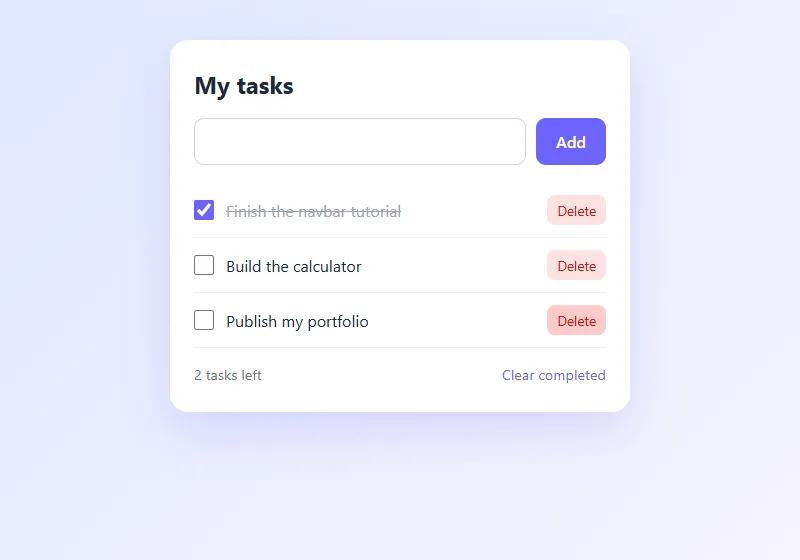
Step 1: The HTML
<main class="page">
  <section class="todo-app">
    <h1>My tasks</h1>

    <form id="todoForm" class="todo-form">
      <label for="todoInput" class="visually-hidden">New task</label>
      <input type="text" id="todoInput" placeholder="Add a new task..."
             maxlength="120" autocomplete="off" required>
      <button type="submit">Add</button>
    </form>

    <p class="empty-state" id="emptyState">No tasks yet. Add your first one above.</p>

    <ul class="todo-list" id="todoList"></ul>

    <div class="todo-footer">
      <span id="counter">0 tasks left</span>
      <button type="button" id="clearDone" class="link-btn">Clear completed</button>
    </div>
  </section>
</main>- The input is inside a
<form>. That gives you two things for free: pressing Enter adds the task, andrequiredstops empty submissions. - A hidden label. The
visually-hiddenclass hides the label from sight but keeps it for screen readers. A placeholder alone is not a label. - An empty
<ul>. JavaScript will create the list items. There are none in the HTML. - An empty-state message. A blank white box looks broken. One friendly line tells the user what to do first.
Step 2: The CSS
* {
  box-sizing: border-box;
  margin: 0;
  padding: 0;
}

body {
  font-family: system-ui, -apple-system, "Segoe UI", Roboto, sans-serif;
  color: #1f2937;
}

.page {
  min-height: 100vh;
  display: flex;
  justify-content: center;
  align-items: flex-start;
  padding: 40px 16px;
  background: linear-gradient(135deg, #e0e7ff, #f5f3ff);
}

.todo-app {
  width: 100%;
  max-width: 460px;
  padding: 28px 24px;
  background: #fff;
  border-radius: 18px;
  box-shadow: 0 20px 50px rgba(79, 70, 229, 0.15);
}

.todo-app h1 {
  font-size: 1.5rem;
  margin-bottom: 18px;
}

/* Hidden visually, still read by screen readers */
.visually-hidden {
  position: absolute;
  width: 1px;
  height: 1px;
  overflow: hidden;
  clip-path: inset(50%);
  white-space: nowrap;
}

.todo-form {
  display: flex;
  gap: 10px;
  margin-bottom: 18px;
}

.todo-form input {
  flex: 1;
  min-width: 0;
  padding: 12px 14px;
  border: 1px solid #d1d5db;
  border-radius: 10px;
  font-size: 1rem;
  font-family: inherit;
}

.todo-form input:focus {
  outline: none;
  border-color: #6c63ff;
  box-shadow: 0 0 0 3px rgba(108, 99, 255, 0.2);
}

.todo-form button {
  padding: 12px 20px;
  border: 0;
  border-radius: 10px;
  background: #6c63ff;
  color: #fff;
  font-size: 1rem;
  font-weight: 600;
  font-family: inherit;
  cursor: pointer;
}

.todo-form button:hover {
  background: #574fd6;
}

.empty-state {
  padding: 24px 0;
  color: #6b7280;
  text-align: center;
}

.todo-list {
  list-style: none;
}

.todo-item {
  display: flex;
  align-items: center;
  gap: 12px;
  padding: 12px 0;
  border-bottom: 1px solid #eef0f4;
}

.todo-item input[type="checkbox"] {
  width: 20px;
  height: 20px;
  flex-shrink: 0;
  accent-color: #6c63ff;
  cursor: pointer;
}

.todo-item label {
  flex: 1;
  min-width: 0;
  overflow-wrap: anywhere;
  cursor: pointer;
}

.todo-item.done label {
  color: #9ca3af;
  text-decoration: line-through;
}

.delete-btn {
  padding: 6px 10px;
  border: 0;
  border-radius: 8px;
  background: #fee2e2;
  color: #b91c1c;
  font-size: 0.85rem;
  font-family: inherit;
  cursor: pointer;
}

.delete-btn:hover {
  background: #fecaca;
}

.todo-footer {
  display: flex;
  justify-content: space-between;
  align-items: center;
  margin-top: 16px;
  color: #6b7280;
  font-size: 0.9rem;
}

.link-btn {
  border: 0;
  background: none;
  color: #6c63ff;
  font-size: 0.9rem;
  font-family: inherit;
  cursor: pointer;
}

.link-btn:hover {
  text-decoration: underline;
}
A few lines worth understanding:
flex: 1on the input lets it take all the space left after the Add button.min-width: 0allows it to shrink on very small screens instead of pushing the button off the edge..todo-item.done labeldraws a line through completed tasks and makes them gray. JavaScript only adds thedoneclass. All of the appearance stays in CSS.overflow-wrap: anywherebreaks very long words or links so one task cannot stretch the card.accent-colortints the built-in checkbox to match the design, without having to build a custom one.
Step 3: The JavaScript
const form = document.getElementById("todoForm");
const input = document.getElementById("todoInput");
const list = document.getElementById("todoList");
const emptyState = document.getElementById("emptyState");
const counter = document.getElementById("counter");
const clearDone = document.getElementById("clearDone");

const STORAGE_KEY = "todos";

// The single source of truth: an array of { id, text, done }
let todos = loadTodos();

function loadTodos() {
  try {
    return JSON.parse(localStorage.getItem(STORAGE_KEY)) || [];
  } catch (error) {
    return []; // storage is blocked or the saved data is broken
  }
}

function saveTodos() {
  try {
    localStorage.setItem(STORAGE_KEY, JSON.stringify(todos));
  } catch (error) {
    // Storage is not available here, so the list lasts until the page closes
  }
}

function createItem(todo) {
  const item = document.createElement("li");
  item.className = todo.done ? "todo-item done" : "todo-item";

  const checkbox = document.createElement("input");
  checkbox.type = "checkbox";
  checkbox.id = "todo-" + todo.id;
  checkbox.checked = todo.done;
  checkbox.addEventListener("change", function () {
    toggleTodo(todo.id);
  });

  const label = document.createElement("label");
  label.htmlFor = checkbox.id;
  label.textContent = todo.text; // textContent, never innerHTML

  const deleteButton = document.createElement("button");
  deleteButton.type = "button";
  deleteButton.className = "delete-btn";
  deleteButton.textContent = "Delete";
  deleteButton.setAttribute("aria-label", "Delete task: " + todo.text);
  deleteButton.addEventListener("click", function () {
    deleteTodo(todo.id);
  });

  item.append(checkbox, label, deleteButton);
  return item;
}

// Rebuild the list on screen from the array
function render() {
  list.replaceChildren(...todos.map(createItem));

  emptyState.hidden = todos.length > 0;

  const left = todos.filter(function (todo) {
    return !todo.done;
  }).length;
  counter.textContent = left + (left === 1 ? " task left" : " tasks left");
}

function addTodo(text) {
  todos.push({ id: Date.now(), text: text, done: false });
  saveTodos();
  render();
}

function toggleTodo(id) {
  todos = todos.map(function (todo) {
    return todo.id === id ? { id: todo.id, text: todo.text, done: !todo.done } : todo;
  });
  saveTodos();
  render();
}

function deleteTodo(id) {
  todos = todos.filter(function (todo) {
    return todo.id !== id;
  });
  saveTodos();
  render();
}

form.addEventListener("submit", function (event) {
  event.preventDefault();
  const text = input.value.trim();
  if (text === "") return;
  addTodo(text);
  input.value = "";
  input.focus();
});

clearDone.addEventListener("click", function () {
  todos = todos.filter(function (todo) {
    return !todo.done;
  });
  saveTodos();
  render();
});

render();
The data: one array
Every task is an object with three properties: a unique id, the text, and whether it is done. All tasks live in the todos array. This array is the single source of truth. The page never stores anything the array does not know about.
The render function
render() throws away the current list on screen and rebuilds it from the array. list.replaceChildren(...) swaps the old items for the new ones in a single step. It then shows or hides the empty message and updates the counter.
Rebuilding everything may sound wasteful, but for a list this size it takes well under a millisecond, and it removes a whole class of bugs. You never have to ask “did I remember to update the counter when a task was deleted?”, because every change goes through the same three steps:
- Change the array.
- Save it.
- Call
render().
Look at addTodo, toggleTodo and deleteTodo. Each one is exactly those three steps.
Adding, completing and deleting
- Add:
pusha new object.Date.now()gives the number of milliseconds since 1970, which is a simple unique id for a personal list.trim()removes spaces at the ends, so a task made only of spaces is ignored. - Complete:
mapreturns a new array where only the matching task has itsdonevalue flipped. - Delete:
filterreturns a new array without the matching task.
Tasks are found by id, not by their position in the list. Positions change when something is deleted. Ids do not.
Saving tasks with localStorage
Without saving, the list disappears on every refresh. localStorage is a small storage area that the browser keeps for each website. It survives refreshes and restarts, and it has two rules:
- It only stores text. So
saveTodosturns the array into text withJSON.stringify, andloadTodosturns it back withJSON.parse. - It can fail. Storage may be blocked in private windows, by browser settings, or inside sandboxed preview frames. That is why both functions use
try...catch. If storage is not available, the app still works. It just does not remember tasks after the page is closed.
The || [] in loadTodos handles a first visit, when nothing has been saved yet and getItem returns null.
Note for the online editor: the live preview runs your code in a sandboxed frame for safety, and browsers do not allow storage there. Everything else works in the preview. To see saving in action, click Download in the editor and open the downloaded file in your browser.
Remember that localStorage lives in one browser on one device. It does not sync between your phone and laptop, and anyone using the same browser profile can read it, so never store passwords or private data there.
Why textContent and not innerHTML
You will often see list items built like this:
// Dangerous: the task text is treated as HTML
item.innerHTML = "<label>" + todo.text + "</label>";
With innerHTML, the browser treats the task text as HTML. If someone types <img src=x onerror="alert(1)"> as a task, the browser creates that image, the image fails to load, and the code in onerror runs. This kind of attack is called cross-site scripting (XSS). In a personal to-do list you could only attack yourself, but the moment text comes from other people, such as comments, usernames or shared lists, it becomes a serious security hole.
The fix is one word:
// Safe: the task text is always treated as plain text
label.textContent = todo.text;
textContent always treats the value as plain text. The tags show up on screen as characters and nothing runs. That is why the code above creates elements with document.createElement and sets their text with textContent. Try it: add a task called <b>hello</b> and you will see the tags as text, not bold letters.
Paste the three blocks into the editor, add a few tasks, tick one off and delete another.
Open the Code Editor →Ideas to extend it
- Filters: add All, Active and Completed buttons. Keep a
filtervariable and apply it insiderender(). - Edit a task: on double-click, swap the label for an input and save on Enter.
- Due dates: add a
<input type="date">and adueproperty, then sort by it. - Drag to reorder: the HTML Drag and Drop API can change the order of the array.
- Sync between devices: replace
localStoragewith requests to a server. The rest of the code stays the same, which is the benefit of keeping data and display separate.
Common mistakes to avoid
- Saving the array without
JSON.stringify. You get the useless text[object Object]. - Forgetting
event.preventDefault()on the form, so the page reloads on every submit. - Deleting by position instead of id, which removes the wrong task after the list changes.
- Updating the screen in one place and the array in another, so they drift apart.
- Building items with
innerHTMLand user text.
Summary
You built a to-do app that stores tasks in an array, renders the page from that array, saves to localStorage, and displays user text safely. Those four ideas (state, rendering, persistence and safe output) are the core of front-end development.
Add it to your portfolio website as a project, then try the JavaScript calculator or another idea from our 10 JavaScript projects for beginners.
Frequently asked questions
How do I make a to-do list in JavaScript?
Keep the tasks in an array of objects, each with an id, text and done value. Write a render function that builds the list on the page from that array. When the user adds, completes or deletes a task, change the array, save it, and call render again.
How do I save a to-do list so it stays after refresh?
Use localStorage. Save with localStorage.setItem("todos", JSON.stringify(todos)) after every change, and load with JSON.parse(localStorage.getItem("todos")) || [] when the page opens. Wrap both in try...catch because storage can be blocked.
Is localStorage safe for a to-do app?
It is fine for non-sensitive data such as tasks. The data stays in one browser on one device, is not encrypted, and can be read by any script on the same site, so never store passwords, tokens or personal data in localStorage.
Why use textContent instead of innerHTML?
innerHTML treats the text as HTML, so task text that contains tags or event handlers could run code on your page, which is a cross-site scripting (XSS) vulnerability. textContent always treats the value as plain text, so it is the safe way to show anything a user typed.
Why are my tasks not saving in an online code editor?
Many online editors run the preview in a sandboxed iframe, and browsers block localStorage inside sandboxed frames. The code is correct. Download the file and open it in your browser, or put it on your own site, and the tasks will be saved.